Site Wizard
Site Wizard is a simple step-by-step wizard that allows users to configure the basic settings, theme selection, and use a site template based on its suggested options.
Creating a site using the Site Wizard
Сlick Create Site from your Account Manager:

Сhoose how you want to create your site:
- With AI Builder. By answering 3 simple questions, our AI Builder will create a beautiful, customizable website in as little as one minute.
- With a Template (Site Wizard). We’ll get you to the templates that will best fit your needs.
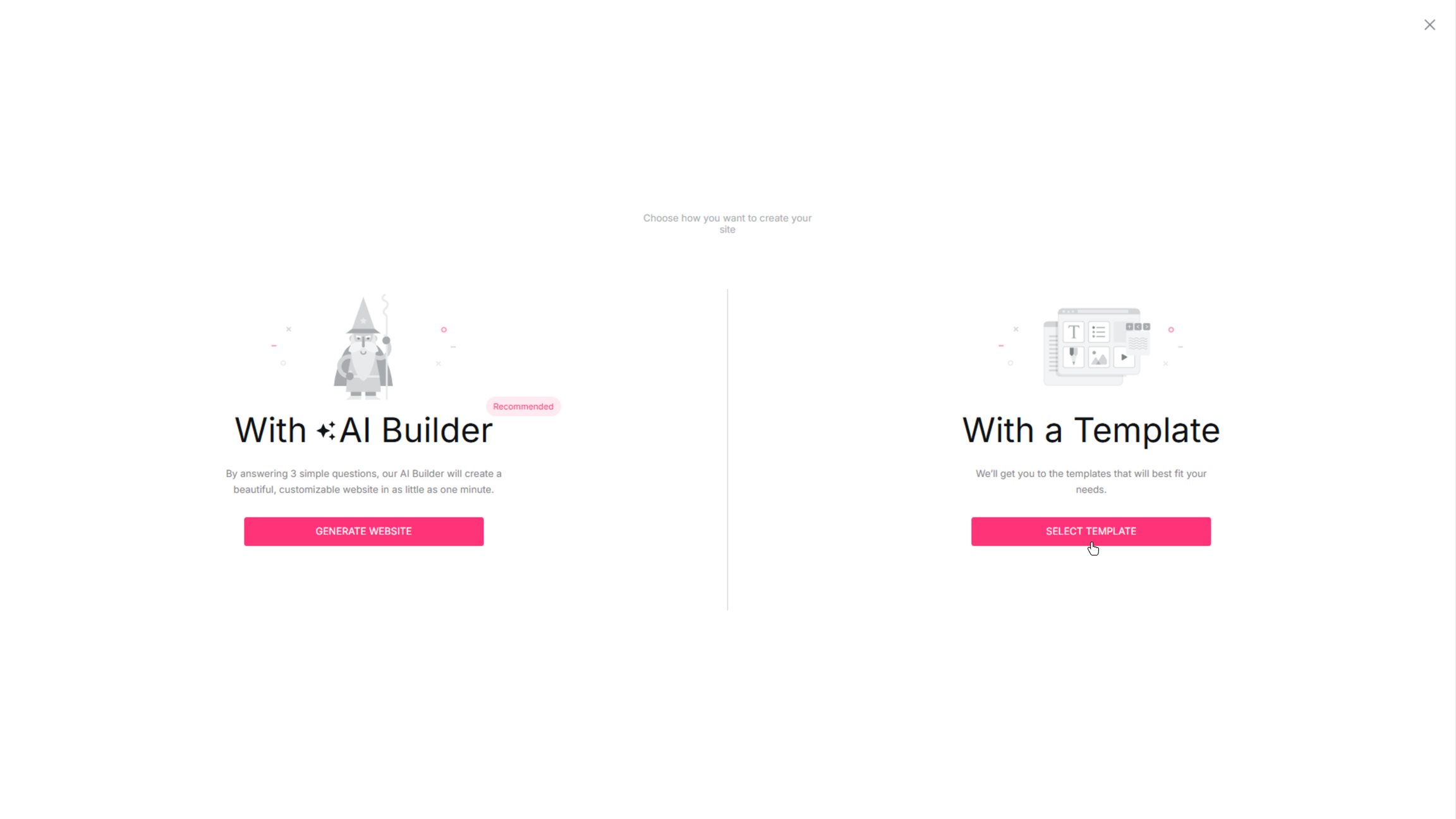
With a Template
Select the Select Template option under the With a Template section to start the Site Wizard path.
Step 1
- Choose a topic for your website. The most relevant template will be identified for your content. Select Next:

Please Note: When selecting the topic Other, you will go directly to Step 3.
Step 2
- Provide more details about your business by selecting a sub-category. Click Next to proceed:

Step 3
1. Upload your logo by clicking on the Add Logo area.

- Сhoose the logo on your computer:

- Add the name of your business or website.
- Select Next:

Step 4
- Continue by adding business or website details such as Email, Country, City, Address, and Postcode.
- Press Next:

A set of templates based on your information will appear in the Recommended section. You can adjust the category and subcategory using the Back arrow. Alternatively, choose a template from the Other section at the bottom or other tabs in the Template Gallery. To start editing, click your preferred template.

Template preview with personalized info will appear. Here you can review information, set up general Fonts and Colors, and edit or change your Logo. To move to the next steps, click Create This Site on the top right.

- A template preview with personalized info will appear. Here you can review information, set up general Fonts and Colors, and your Logo. To move to the next steps, click Create This Site on the top right.

- Start editing your website, and click Publish when it’s ready to go live:

Closing Site Wizard
To close the Site Wizard select the Close icon in the upper right corner of the screen:

and confirm this action in the pop-up window by clicking the Yes button:

after which you will be directed to the Account Manager:

With AI Builder
To create a website with AI Builder, click the Generate Website button. Please refer to the Website Onboarding article to learn more about the AI Builder site generation.